No edit summary |
No edit summary Tag: 2017 source edit |
||
| Line 1: | Line 1: | ||
A status badge is specially formatted text that indicates the status of | A status badge is specially formatted colored text that indicates the status of an information unit. | ||
== Adding a status badge == | == Adding a status badge == | ||
Status badges are available as a Content Droplet. | Status badges are available as a [[Manual:Extension/ContentDroplets|Content Droplet]]. | ||
# Place your cursor where you want the status badge to appear. | # Place your cursor where you want the status badge to appear. | ||
# Open the Content Droplets menu[[File:VE-ContentDroplets.png|alt=Content Droplet menu item of Visual Editor|30x30px]]. | # Open the Content Droplets menu[[File:VE-ContentDroplets.png|alt=Content Droplet menu item of Visual Editor|30x30px]]. | ||
# Search for "Status | # Search for "Status Badge". | ||
# Insert the Content Droplet. | # Insert the Content Droplet.<span class="inline-img">[[File:Content Droplet StatusBadge.png|alt=Inspector for the Content Droplet|center|thumb|650x650px|Content Droplet "Status badge"]]</span> | ||
# Add your status message. | # Add your status message. | ||
# Select a color. | # Select a color. | ||
# Select "light badge" if you want to show a badge with a light background color (optional). | # Select "light badge" if you want to show a badge with a light background color (optional). | ||
To add another status badge, you can click on the inserted status badge, copy it (Ctrl+c) and paste it somewhere else on the page. | To quickly add another status badge, you can click on the inserted status badge, copy it (Ctrl+c) and paste it somewhere else on the page. Click the duplicated badge and then <code>click</code> to change its text and color. | ||
== Accessibility == | == Accessibility == | ||
Revision as of 10:02, 20 July 2026
A status badge is specially formatted colored text that indicates the status of an information unit.
Adding a status badge
Status badges are available as a Content Droplet.
- Place your cursor where you want the status badge to appear.
- Open the Content Droplets menu
 .
- Search for "Status Badge".
- Insert the Content Droplet.
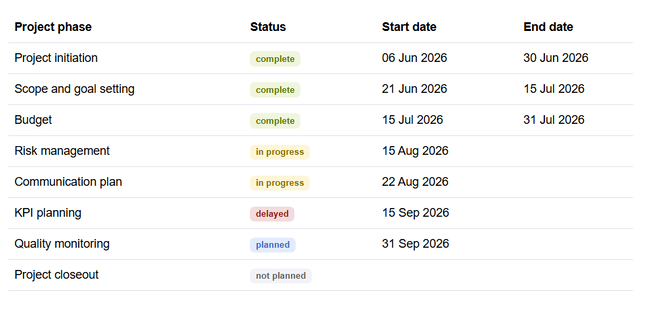
Content Droplet "Status badge" - Add your status message.
- Select a color.
- Select "light badge" if you want to show a badge with a light background color (optional).


To quickly add another status badge, you can click on the inserted status badge, copy it (Ctrl+c) and paste it somewhere else on the page. Click the duplicated badge and then click to change its text and color.
Accessibility
Use of color: Make sure to use label text for a status badge that clearly indicates the status. Do not rely on the color alone for conveying the meaning. For example, negative numbers should have a qualifier (-) instead of just being formatted with a red background, for example. WCAG #use-of-color
Screenreaders will read the badge as a combination of badge type ("Status"), color (e.g. "green") and label text: "Status: green, complete".



